The Internet uses IP addresses to refer to all resources but IP addresses are difficult to remember for humans. We instead use easy-to-remember domain names such as www.networkstraining.com to refer to Internet resources.
Domain Name System (DNS) is the Internet directory service that automatically translates domain names to corresponding IP addresses.
Dynamic Domain Name System (DDNS) is a method to update a Domain Name System (DNS) in real time to point to a changing IP address of a resource on the Internet.
DDNS is used to provide a persistent domain name for a resource that may change IP address frequently due to changing location on the network or re-assignment by service provider after a dropped connection.
Let’s assume you want to run a Web server from your home over a broadband connection that does not have a reliable static IP address for public reachability.
One option may be to shell out a good deal of money for a premium plan that provides a static IP address. A cheaper (or even free) option may be to make use of Dynamic DNS (DDNS).
Let’s configure our Cisco router R1 to act as a client to work with a Dynamic DNS (DDNS) service provider DynDNS (www.dyndns.com).
Figure 1 Dynamic DNS
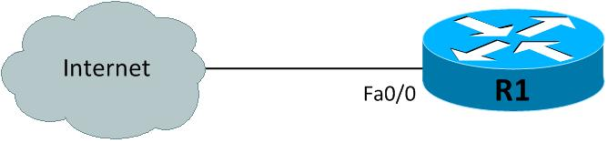
The configuration is pretty straightforward as you would see in a moment. The first step is to define a DDNS update method:
R1>enable
R1#configure terminal
Enter configuration commands, one per line. End with CNTL/Z.
R1(config)#ip ddns update method DynDNS
R1(DDNS-update-method)#?
Dynamic DNS update method configuration commands:
DDNS IETF standardized Dynamic DNS update
HTTP Dynamic DNS update via HTTP based protocols
default Set a command to its defaults
exit Exit from DNS dynamic update method configuration mode
internal Update internal IOS name cache
interval Specify interval between DNS updates
no Negate a command or set its defaults
R1(DDNS-update-method)#
Two Dynamic DNS update methods are available: DDNS and HTTP. We will use the HTTP method in this tutorial because most DDNS providers seem to support HTTP updates.
R1(DDNS-update-method)#http
R1(DDNS-HTTP)# add
http://user123:[email protected]/nic/update?system=dyndns&hostname=<h>&myip=<a>
The two letters in angled brackets within the above URL, <h> and <a> will be replaced with the router’s hostname and interface IP address respectively when the HTTP request is made.
Also you would need to inset a Ctrl-v as escape character before the question mark in the URL can be entered on Cisco CLI.
The URL would also include the login credentials of your DDNS account that your provider will give you when you register for an account.
We have user user123 and cisco123 as username and password; you should use your own username and password in the above configuration.
Also, please note that if you choose to use a DDNS service provider other than www.dyndns.com, you should replace the URL string in the add command above with one specific to your provider. However the rest of the configuration can stay the same.
We would also configure a minimum update interval to force the router to issue a DDNS update request even when the address has not changed, so the service porvider knows the account is still active.
The interval is specified as four integers to represent days, hours, minutes, and seconds. We set a minimum update interval of twelve hours.
Router(DDNS-update-method)#interval minimum 0 12 0 0
The final piece of the puzzle is the configuration of the Internet facing interface Fa0/0 on R1. Please note that you should replace myname.dyndns.com with your own domain name.
R1(config)#interface FastEthernet0/0
R1(config-if)#ip ddns update DynDNS
R1(config-if)#ip ddns update hostname myname.dyndns.com
R1(config-if)#ip address dhcp
R1(config-if)#exit
R1(config)#
In order to verify DDNS updates are actually sent when a new IP address is assigned to interface Fa0/0, we would turn on debugging of DDNS updates.
R1#debug ip ddns update
Dynamic DNS debugging is on
R1#
You may need to shut down and bring up interface Fa0/0 to make sure it is assigned a new IP address by the ISP and DDNS updates are triggered. Here is a sample debug output showing that the router is indeed sending Dynamic DNS updates to the provider.
Nov 26 23:05:29.739: DYNDNSUPD: Adding DNS mapping for myhost.dyndns.com <=> 192.168.2.29
Nov 26 23:05:29.743: HTTPDNS: Update add called for myhost.dyndns.com <=> 192.168.2.29
Nov 26 23:05:29.743: HTTPDNSUPD: Session ID = 0x5
Nov 26 23:05:29.747: HTTPDNSUPD: URL = ‘http://user123:[email protected]/nic/update?system=dyndns&hostname=myhost.dyndns.com&myip=192.168.2.29’
Nov 26 23:05:29.747: HTTPDNSUPD: Sending request
R1# (192.168.2.1) [OK]
Nov 26 23:05:39.795: HTTPDNSUPD: Response for update myhost.dyndns.com <=> 192.168.2.29
Nov 26 23:05:39.799: HTTPDNSUPD: DATA START
nohost
Nov 26 23:05:39.803: HTTPDNSUPD: DATA END, Status is Response data recieved, successfully
Nov 26 23:05:39.807: HTTPDNSUPD: Call returned SUCCESS for update myhost.dyndns.com <=> 192.168.2.29
Nov 26 23:05:39.811: DYNDNSUPD: Another update completed (outstanding=0, total=0)
Nov 26 23:05:39.827: HTTPDNSUPD: Clearing all session 5 info
R1#
Related Posts
- How to Configure Port Forwarding on Cisco Router (With Examples)
- Redistribution and OSFP – Discussion With Cisco Commands Examples
- Cisco HSRP States and Troubleshooting (With Commands)
- Cisco Router Login – GUI Login and How to Secure Your Access
- Route Filtering and OSPF – Workaround With Distribute List Filtering