In this article I’ll describe a few ways to verify over the network if a remote TCP port on a host is open or not. This is a popular troubleshooting method to identify if a specific service or application is running on a remote server or computer.
As you might know already, when an application or service is running on a host, it has a specific TCP or UDP port associated to it in order to communicate over a TCP/IP network (i.e in order for the service to send and receive TCP/IP packets over the network).
For example, some popular (well-known) services use the following TCP ports:
- Web Service: Ports 80 (HTTP), 443 (HTTPs)
- Windows Remote Desktop Service: Port 3389
- Secure Shell (SSH): Port 22
- File Transfer Protocol (FTP): Ports 20,21
- Telnet: Port 23
- Simple Mail Transfer Protocol (SMTP): Port 25
- Post Office Protocol (POP3): Port 110
If you want to troubleshoot connectivity issues from your local computer/server towards a remote host, it’s better to start working from the lower OSI layers and more your way up to identify the problem.
For example, let’s say a remote web server does not respond to HTTP requests (i.e you have started your browser and visited the remote URL with no response).
One of the first things to check is whether the remote web server’s TCP port 80 or 443 are open and reachable from your end.
If you try to “ping” the remote ports (i.e try to communicate with the ports) and you get no-response, it means the problem is on the network between your end and the server (maybe a firewall problem, network routing problem etc).
3 Ways to “Ping” a Remote Port
To be accurate here, the term “ping the remote port” is not actually a valid statement. The “Ping” protocol is actually using ICMP packets (echo, echo reply etc) to identify if a remote host is “alive” (i.e connected to the network and replying to the ICMP packets).
The ping protocol does not send TCP packets to the remote host to identify open ports.
In this article, I’m just using the term “ping the port” in the context of “poking the port” to verify if it’s open (listening) or not.
Let’s see four ways to check if a port is open:
Using Telnet
Telnet is a popular (and very old and unsecure) protocol to connect remotely to systems (e.g to network devices, Linux machines etc).
It has its origins back to 1969 (from when the Internet was born) and provides a text-based (command line) terminal for interacting with remote systems.
By default, the telnet protocol uses port 23 to connect to the remote system. However, you can specify the destination (remote) port that you want to connect to.
Example:
telnet www.google.com 443 <— you can specify which port to telnet (443 in this example)

As shown on the screenshot above, I have used “telnet” to connect to www.google.com at port 443. The reply from Google is “Connected” which means that port 443 is open.
Now, let’s try to “ping” (connect) to a random port (e.g 12345) which is probably closed:
telnet www.google.com 12345

As you can see from above, port 12345 does not respond to our telnet request which means it’s closed.
Using NMAP
I have explained what NMAP is and how to use it in the articles here and here.
Basically with nmap you can send TCP packets to specific remote ports and listen to the reply packets to verify if the port is open or closed.
Let’s use nmap to see if port 53 (DNS) is listening on the Google DNS service (IP address 8.8.8.8)
Example:
root@vps:~# nmap -p 53 8.8.8.8
Starting Nmap 7.70SVN ( https://nmap.org ) at 2019-09-16 13:16 EDT
Nmap scan report for dns.google (8.8.8.8)
Host is up (0.0095s latency).
PORT STATE SERVICE
53/tcp open domain
Nmap done: 1 IP address (1 host up) scanned in 0.21 seconds
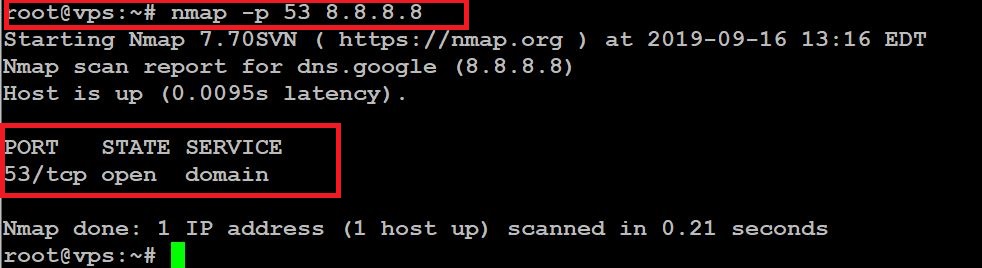
As you can see from above, port 53 (DNS) is open on the remote server (8.8.8.8).
Using NetCat (“NC”)
NetCat (abbreviated as “nc”) is considered the “swiss army knife” of networking utilities. It can send and receive TCP packets among other useful functions.
Similar to Telnet, we can use NC to send TCP packets to a destination port and see if the port is open:
Example:
root@vps:~# nc -v www.google.com 80
www.google.com [172.217.6.196] 80 (http) open

Make sure to use the “-v” switch in order to get verbose output from the netcat command. As shown above, port 80 is open on Google.
Using Windows Powershell “Test-NetConnection”
Windows Powershell provides many useful commands (cmdlets) for performing lots of windows monitoring and administration tasks, including testing network connections.
The “Test-NetConnection” cmdlet displays diagnostic information for a connection. It supports ping test, TCP test, route tracing, and route selection diagnostics.
Lets test if port 443 (HTTPs) is open on www.google.com
PS C:\Users\Testuser> Test-NetConnection www.google.com -Port 443
ComputerName : www.google.com
RemoteAddress : 172.217.22.68
RemotePort : 443
InterfaceAlias : Wi-Fi
SourceAddress : 192.168.131.44
TcpTestSucceeded : True
As you can see, the TCP “ping” test for port 443 to Google is successful.
Final Words
So here you go, four different ways to “ping a port” and check if it responds or not. I have used the first three methods above on a Linux host but you can use them on Windows machines as well (especially NMAP can easily be installed on Windows as well).
Ofcourse, the Powershell command runs mostly on Windows machines but you can install it on Linux as well.
Note: Although NetCat is a very useful utility, do not use it on Windows machines because most probably the Antivirus will detect the tool as “malicious”. NetCat is actively being used by hackers (because of its versatility and powerful features) so it got a bad reputation in the security industry.
Related Posts
- Difference Between Routers and Switches in TCP/IP Networks
- 11 Different Types of IP Addresses Used in Computer Networks
- Compare and Contrast Network Topologies (Star, Mesh, Bus, Hybrid etc)
- 11 Networking Companies Like Cisco (Competitors)
- What is a Wildcard Mask – All About Wildcard Masks Used in Networking